Choose an image to see the compressed size here, then download the result.
Runs in your browser. Your entries are calculated on this device. Ziannah does not store the values you enter here.
Related tools
Explore all toolsHow it works
Compress an image without uploading it
Pick an image, choose a quality level and output format, and download the smaller file. The compression runs entirely in your browser using the canvas built into it, which is why no upload is needed.
Choosing a quality level
Between 70% and 85% is the practical sweet spot for photos: the file often shrinks by more than half before most people can spot a difference. Below 60%, compression artifacts start to show around edges and gradients.
JPEG, WebP, or PNG
JPEG is the safe default for photos. WebP usually produces the smallest file at the same quality and is supported by every modern browser. PNG is lossless, so the quality slider does not apply; use it only when you need transparency or exact pixels.
Resizing does the heavy lifting
Halving an image's width roughly quarters its pixel count, which shrinks the file far more than any quality setting. If a photo will be shown at 800px wide, there is no reason to ship 4000px.
Transparency and JPEG
JPEG has no transparency. When a transparent PNG is converted to JPEG here, the transparent areas are flattened onto white rather than turning black, which is the usual surprise with canvas conversion.
Related reading
Read the blog
Article
Is overtime taxed more? No, and here is the real reason
Overtime is taxed at the same rate as your normal pay. Here is why your payslip looks wrong, and the new deduction that cuts what you owe from 2025 to 2028.
Article
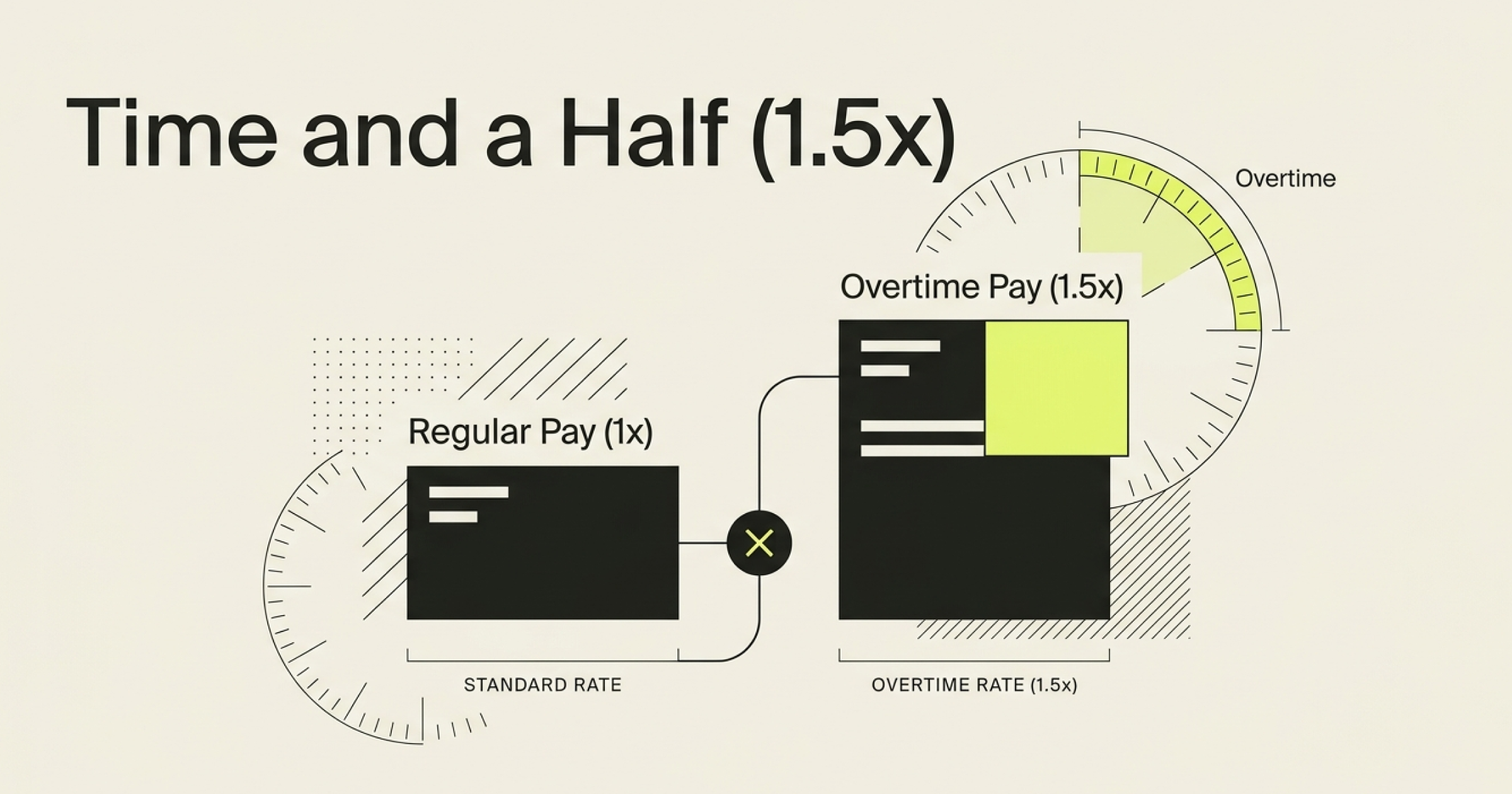
How to Calculate Overtime Pay (Time and a Half)
Multiply your regular rate by 1.5 and then by your overtime hours. The hard part is knowing which rate to use, because it is often higher than your wage.

Article
Minutes to Decimal Hours: Payroll Conversion Chart
Divide minutes by 60. Here is the chart, the four values worth memorizing, and the rounding habit that quietly costs you minutes every week.